Move anything: exporting and importing shows and channels
How ChannelOS bundles work — export a show (.show.channelos.tv) or a whole channel (.channel.channelos.tv) with schedule, shows and media baked in, then import it into any workspace as a fresh, self-contained copy.
Two questions decide whether a business should trust any tool with the thing customers actually look at. Can I get my work out if you disappear, and can I hand it to somebody else without rebuilding it? Most signage products answer the first one vaguely and the second one not at all.
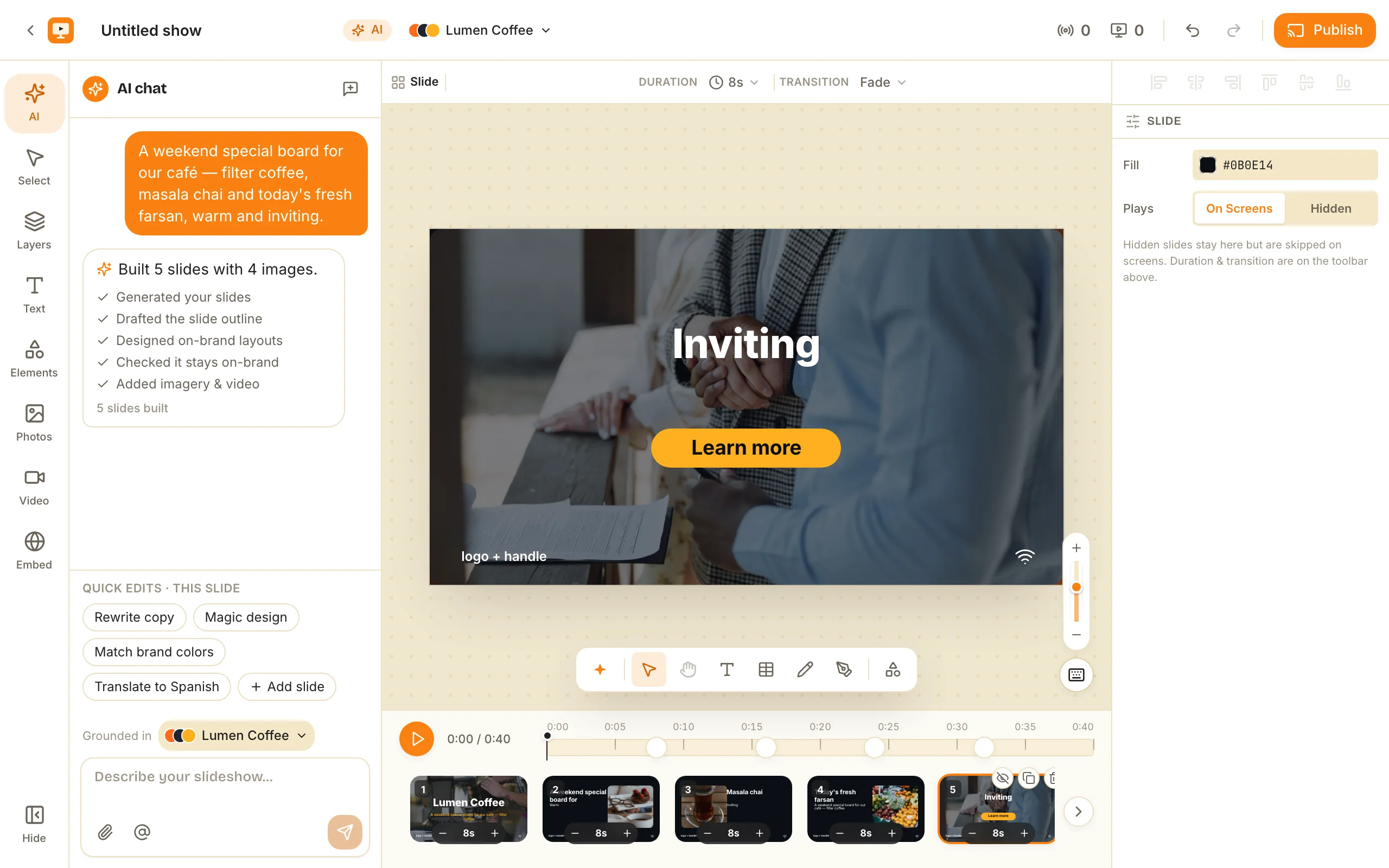
Sometimes content has to move — to a client’s workspace, between a staging and a live account, or just as a backup you can trust. ChannelOS handles this with one portable bundle format: a show downloads as .show.channelos.tv and a channel as .channel.channelos.tv. Same engine underneath, one extension per kind so you can tell at a glance what’s inside.
What a ChannelOS bundle actually is
It’s a ZIP with everything the content needs to stand on its own:
- A manifest (
manifest.json) recording the format, what kind of bundle it is, and a SHA-256 integrity check. - The entities — the show, or the channel plus every show it airs.
- A media folder with every referenced image, video and audio file, frozen as bytes and content-addressed by hash (so the same photo used on five slides is stored once).
- The brand kits those shows depend on.
Because the media is baked in and there are no remote URLs, the file works offline and in any workspace. Nothing can rot.
Export a show
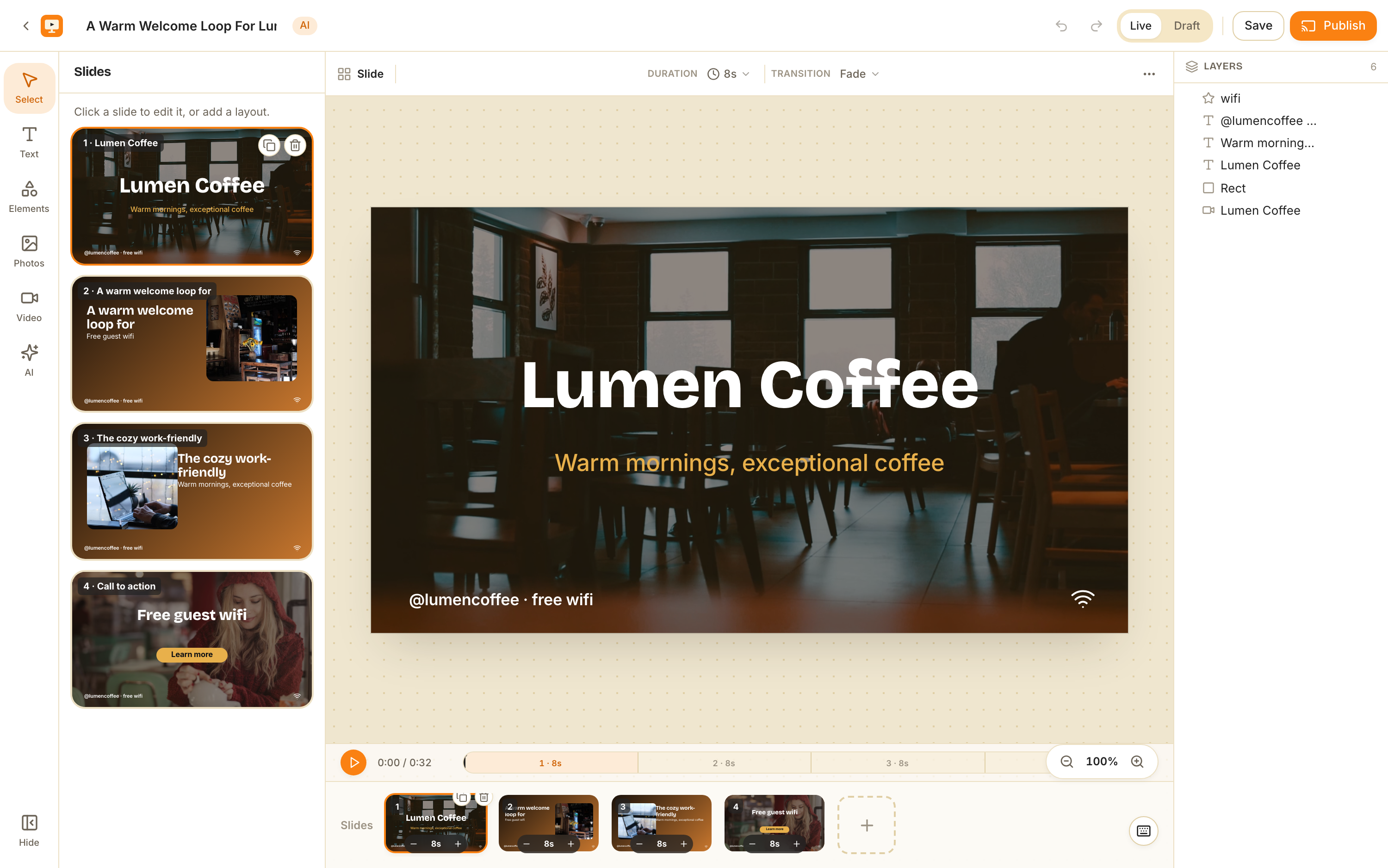
Go to Shows (/shows), open a show card’s three-dot menu, and choose Export…. You get a <name>.show.channelos.tv file (named after the show) containing the show, its brand kit, and all of its media.
Import a show
On the Shows page, click Import show (top-right), pick a .show.channelos.tv file, and ChannelOS:
- Unpacks the ZIP and validates the manifest and integrity.
- Creates a new show with a new ID — never overwriting an existing one.
- Re-uploads the media into your workspace’s store, skipping anything outside the safe type whitelist.
- Recreates the brand kit as a fresh entity.
On success you get a Show imported toast and land in the editor, ready to use it. If any media was skipped, the toast says how many.
Export a channel — schedule and all
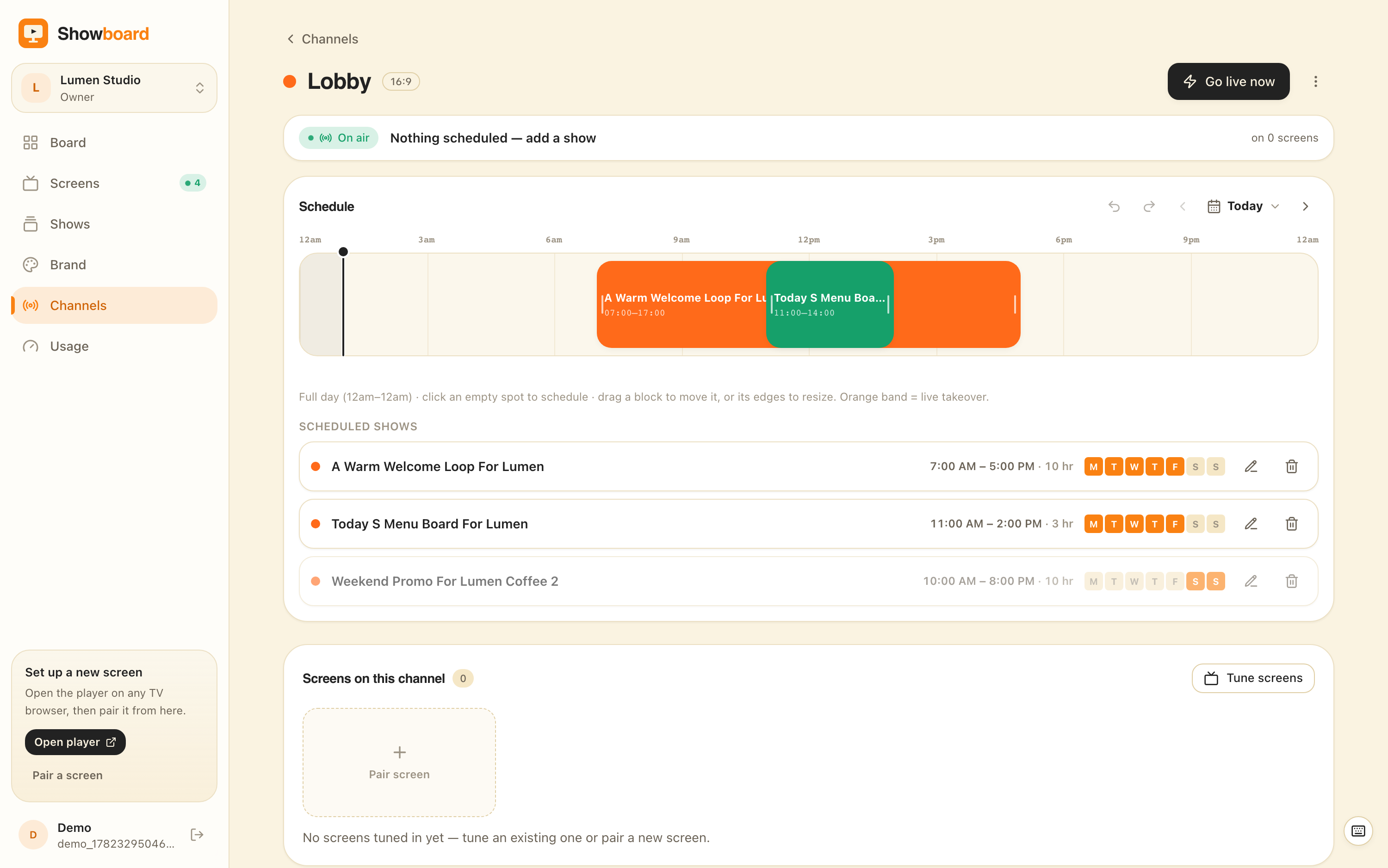
A channel is more than a list — it’s a plan. So Export… from a channel row’s menu produces a <name>.channel.channelos.tv that carries:
- The channel itself: name, aspect, color, default show.
- The full schedule — every program with its times, recurring weekdays and date ranges, plus any live takeover.
- Every show the channel airs — default, scheduled and overlay.
- All media for those shows (deduplicated across the whole bundle) and their brand kits.
One file, the entire broadcast plan.
Import a channel
On Channels, click Import channel, pick the file, and ChannelOS rebuilds the whole thing: a new channel with new show IDs, the schedule remapped onto those new shows, media re-uploaded, brand kits recreated. The success toast reports how many shows came across. The result is a working channel on its timeline — schedule intact — with no dependency on where it came from.
Why it’s safe to do often
Three properties make this boring in the best way:
- New IDs on every import — nothing collides, nothing is overwritten, and you can import the same file as many times as you like.
- Content-addressed media — duplicates are stored once and verified by hash, so big bundles stay lean and provably intact.
- A type whitelist — only known-safe media is accepted on import, so a file from an untrusted source can’t smuggle anything in.
Export to hand a finished channel to a client, to snapshot before a big change, or to clone a proven setup into a new location. The file is the whole thing — pick it up, drop it anywhere, and it just runs.
Our answer is a file, and you can verify it in about two minutes without asking us anything: export a show, look at what lands on your disk, and import it into a second workspace. This works on the free plan too. If it comes back whole, the lock-in question is closed and you never have to take our word for it.
Frequently asked questions
- What is a .show.channelos.tv or .channel.channelos.tv file?
- A ZIP with a checksummed manifest plus every entity and media file the export needs. A show export (.show.channelos.tv) contains the show, its brand kit and all referenced media. A channel export (.channel.channelos.tv) contains the channel, its full schedule, every show it airs and all of their media. Both are frozen — no remote URLs — so they work offline and across workspaces.
- Does exporting a channel include its schedule and shows?
- Yes. A channel export carries the full program array — times, recurring weekdays, date ranges — plus every show the channel airs (default, scheduled and any live takeover) and all their media and brand kits. Import it and the schedule comes back intact, remapped to the new shows.
- Will importing overwrite something or break links?
- No. Import always creates new entities with new IDs and re-uploads the media into the destination workspace. Nothing is overwritten and there are no links back to the original, so you can import the same file repeatedly without collisions.
- Why are some media types skipped on import?
- Import only accepts a safe whitelist — PNG, JPG, GIF, WebP, AVIF, MP4, WebM, OGG. Anything outside it (e.g. SVG or executables) is skipped for security, and the success toast tells you how many files were skipped.
Your screen is two minutes away.
Open the player on a TV, scan the code, publish a show. Your first screen is free.